Guide
Google Takeout photos have the wrong date
You downloaded your library with Google Takeout and a large share of the photos and videos now show the same date: the day you made the export. The real dates are still in the Takeout. They are just in the wrong place.
Why the dates are wrong
Every file in a Takeout zip is stamped with the day the export was made. Most photo apps date a picture by the capture date stored inside the file (EXIF for photos, the creation time for videos) and only use the file date when there's nothing inside.
Photos straight from a phone camera usually carry their own date, so they come out right. These usually don't:
- screenshots and images saved from WhatsApp, Telegram or the web,
- edits made in Google Photos (the
-editedcopies), - many videos, and anything shared to you,
- scans, and photos whose date you corrected in Google Photos.
Google kept the correct date for all of them in a JSON file next to each photo, in the field photoTakenTime. Nothing reads those files except tools made for Takeout. Since 2024 the JSON is named IMG_1234.jpg.supplemental-metadata.json, often cut short to something like .suppl.json, which is why older scripts now miss many of them (more on the names).
Fix it free with ExifTool
ExifTool by Phil Harvey is free and runs on Windows, macOS and Linux (exiftool.org). Extract all your Takeout zips into one folder first, and work on a copy: -overwrite_original changes files in place. Then run this from the folder that holds Takeout:
exiftool -r -d %s -api QuickTimeUTC -tagsfromfile "%d%F.supplemental-metadata.json" \
  "-DateTimeOriginal<PhotoTakenTimeTimestamp" "-CreateDate<PhotoTakenTimeTimestamp" \
  "-FileModifyDate<PhotoTakenTimeTimestamp" \
  --ext json -overwrite_original -progress "Takeout/Google Photos"
For an export made before 2024, or a mix of both, run it a second time with "%d%F.json" in place of "%d%F.supplemental-metadata.json". Files without a matching JSON are reported as errors and left alone, so running both is safe.
What each part does:
| Part | Meaning |
|---|---|
-r | Go through every subfolder. |
-d %s | Read the JSON timestamp as seconds since 1970. |
-api QuickTimeUTC | For videos: their creation time is stored in UTC, so ExifTool converts it. Photos are unaffected. |
-tagsfromfile "%d%F...json" | For each photo, read tags from the JSON in the same folder whose name is the photo's full name plus the ending. %d is the folder, %F the file name with its extension. |
-DateTimeOriginal<... | ExifTool reads photoTakenTime.timestamp from the JSON as PhotoTakenTimeTimestamp and writes it as the capture date. |
-FileModifyDate<... | Also sets the file date, for apps that only look at that. |
--ext json | Don't try to write into the JSON files themselves. |
On Windows, use the same commands in Command Prompt with the backslashes and line breaks removed (all on one line). In a .bat file every % has to be written %%.
Where the commands fall short
- Cut-off names. Takeout cuts long JSON names at 51 characters, anywhere:
.supplemental-metad.json,.suppl.json, even..json. The commands above only find the exact names you give them. The cut-off patterns. - Duplicates.
IMG_1234(1).jpghas its JSON atIMG_1234.jpg(1).json, with the counter moved. Duplicates and edited copies. - Edited copies (
IMG_1234-edited.jpg) have no JSON of their own. They need the date of their original. - Time zone.
-d %sturns the moment into local time in your computer's time zone. Photos from a trip abroad get your home clock time. On a Mac or Linux you can run one folder withTZ=Europe/Lisbon exiftool ...to use another zone. - Zip parts. A photo and its JSON can be in different zip parts, so all parts have to be extracted into the same folder first.
For a small library with mostly short names, the commands are enough. For a big one, count how many files your commands skipped before you import.
Without the command line
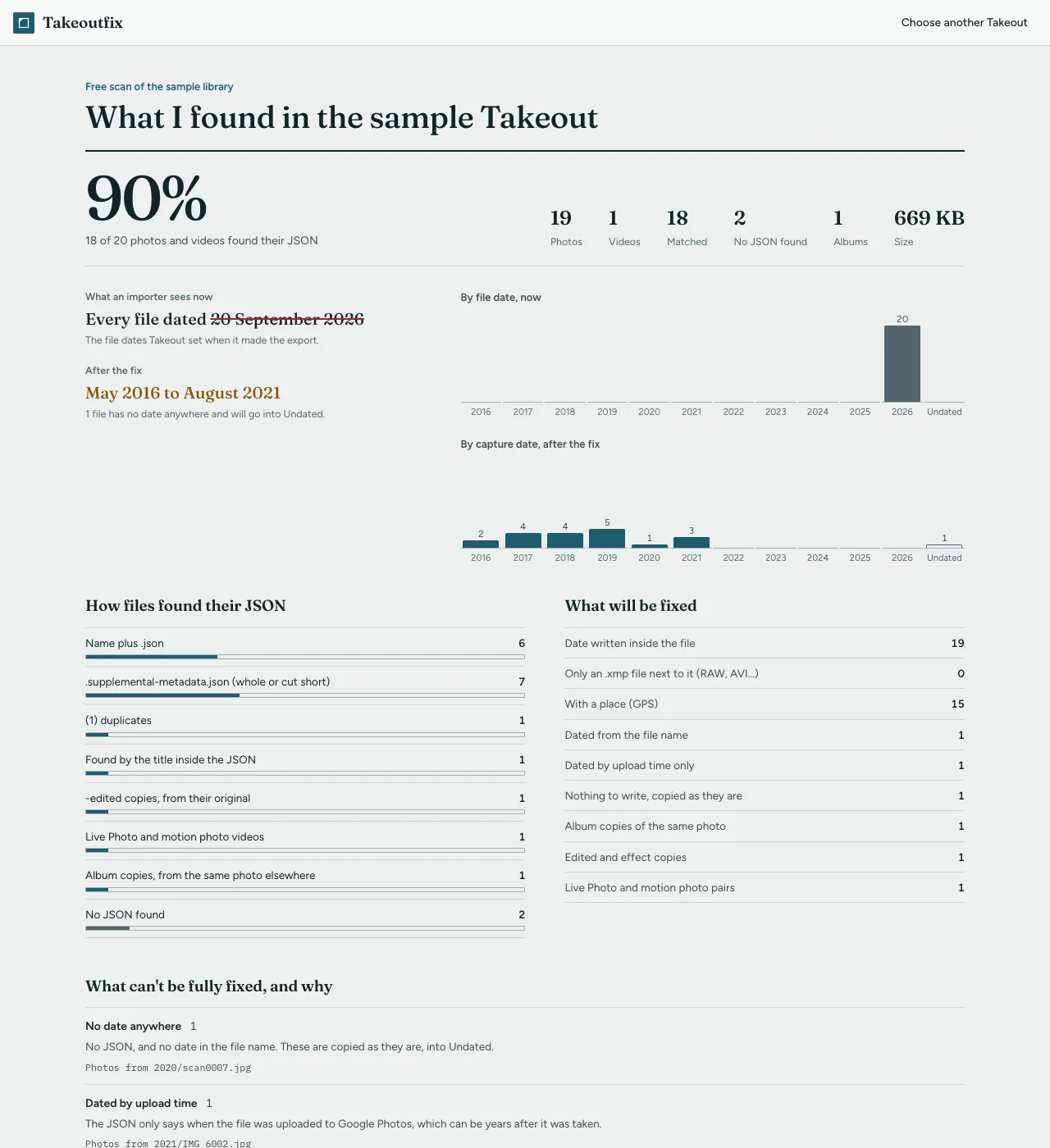
I made Takeoutfix for people who'd rather not do the above. It handles every name pattern listed here, reads the zip parts without extracting them, dates edited copies from their originals, and writes the time zone offset as well as the date.
- Open Takeoutfix in Chrome or Edge on a computer and add all the zip parts.
- Read the free scan: the match rate, what will be fixed and how, and what can't be and why.
- Fix 100 photos and videos free, import them into your photo app and check the dates.
- If they're right, fix the whole library for $9, once.
Already imported?
If the photos are already in Apple Photos, Lightroom or a NAS with the wrong dates, delete those copies first (and empty Recently Deleted in Apple Photos), then import the fixed files. Otherwise you'll have two of each. Apple Photos specifics.
Related guides
- photoTakenTime vs creationTime in a Google Takeout JSON
- Google Takeout JSON files: what they are and what to do with them
- Apple Photos shows the wrong date after importing a Google Takeout
Takeoutfix matches every photo and video in your Takeout to its JSON, writes the date, place and caption back into the files, and files a fixed copy by year and month. It runs in your browser and nothing is uploaded. The scan is free, and so is fixing 100 photos and videos from your own library to check the result. The whole library is $9, once.
Scan your Takeout free